Push Your First Component in 10 Minutes
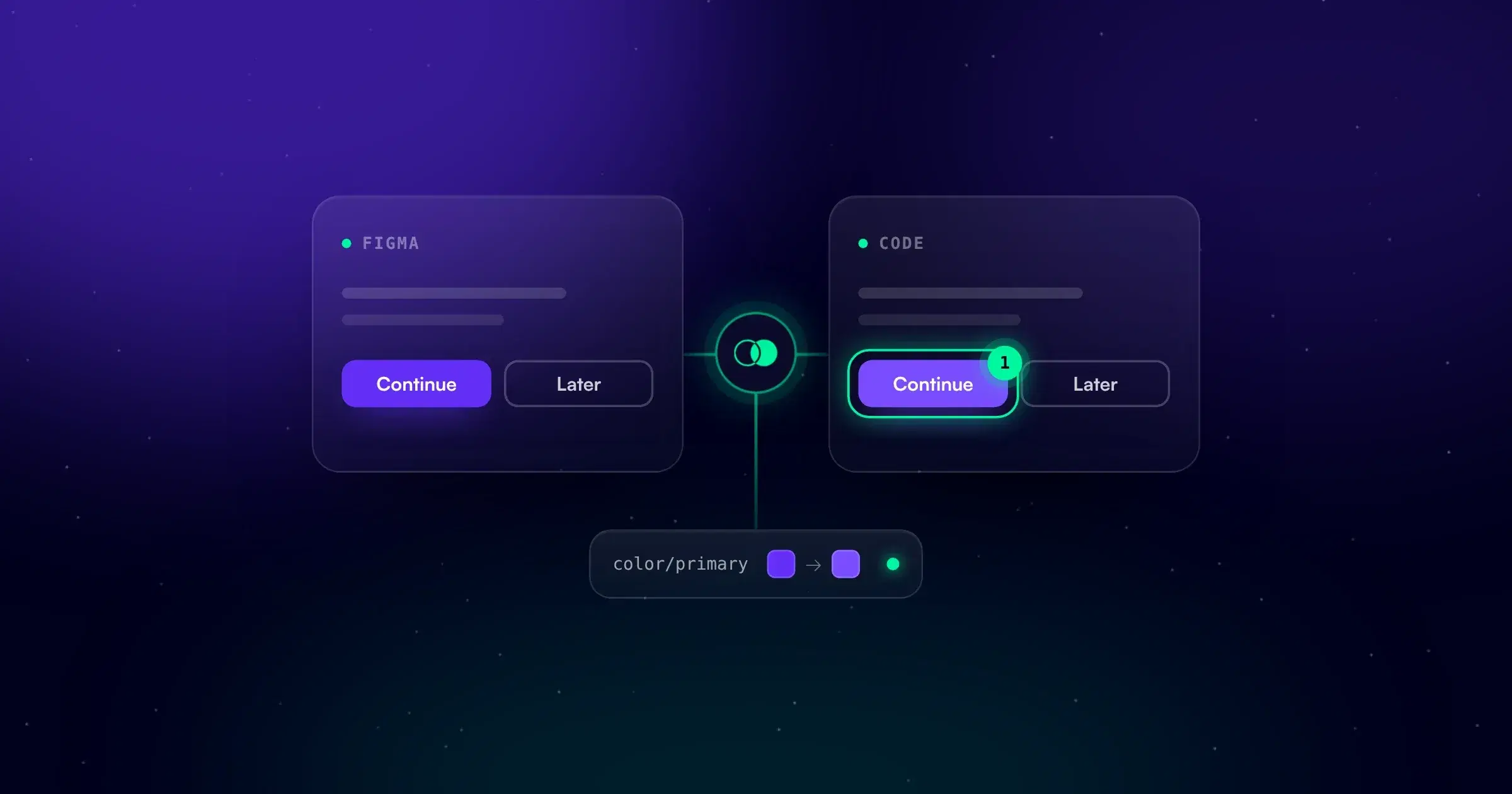
Use the deeepSpace Figma design system plugin to push your first component set, with its variants, properties and tokens, versioned and ready to compare.
Prerequisites
- A deeepSpace account. Crew starts with a 7-day free trial, no credit card required.
- A Figma file with at least one main component or component set. A Button with a few variants is ideal.
- About 10 minutes.
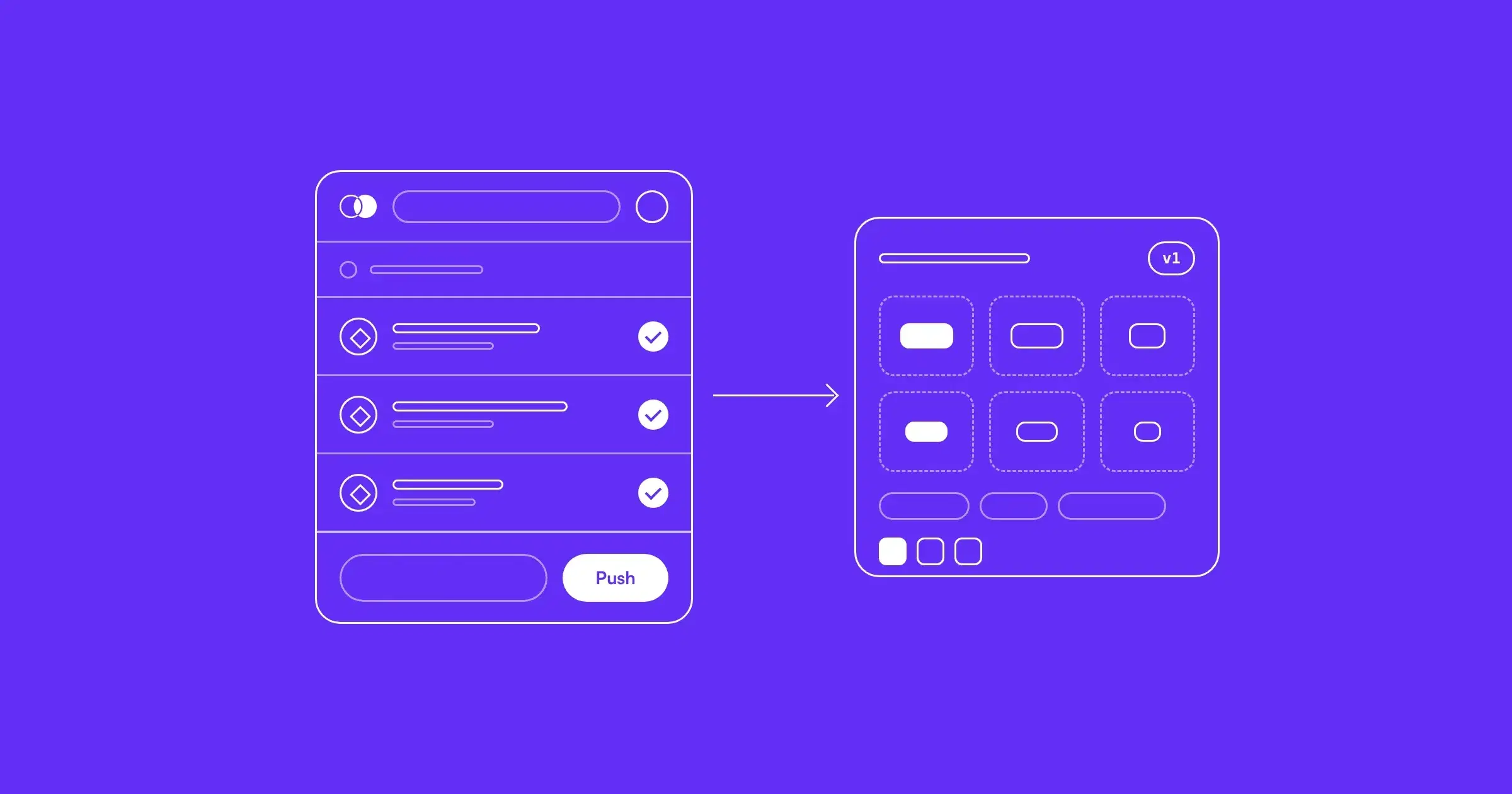
The goal: your Button component set inside deeepSpace, with its variants, properties, styles and tokens, saved as the first design version and ready to map to its code.
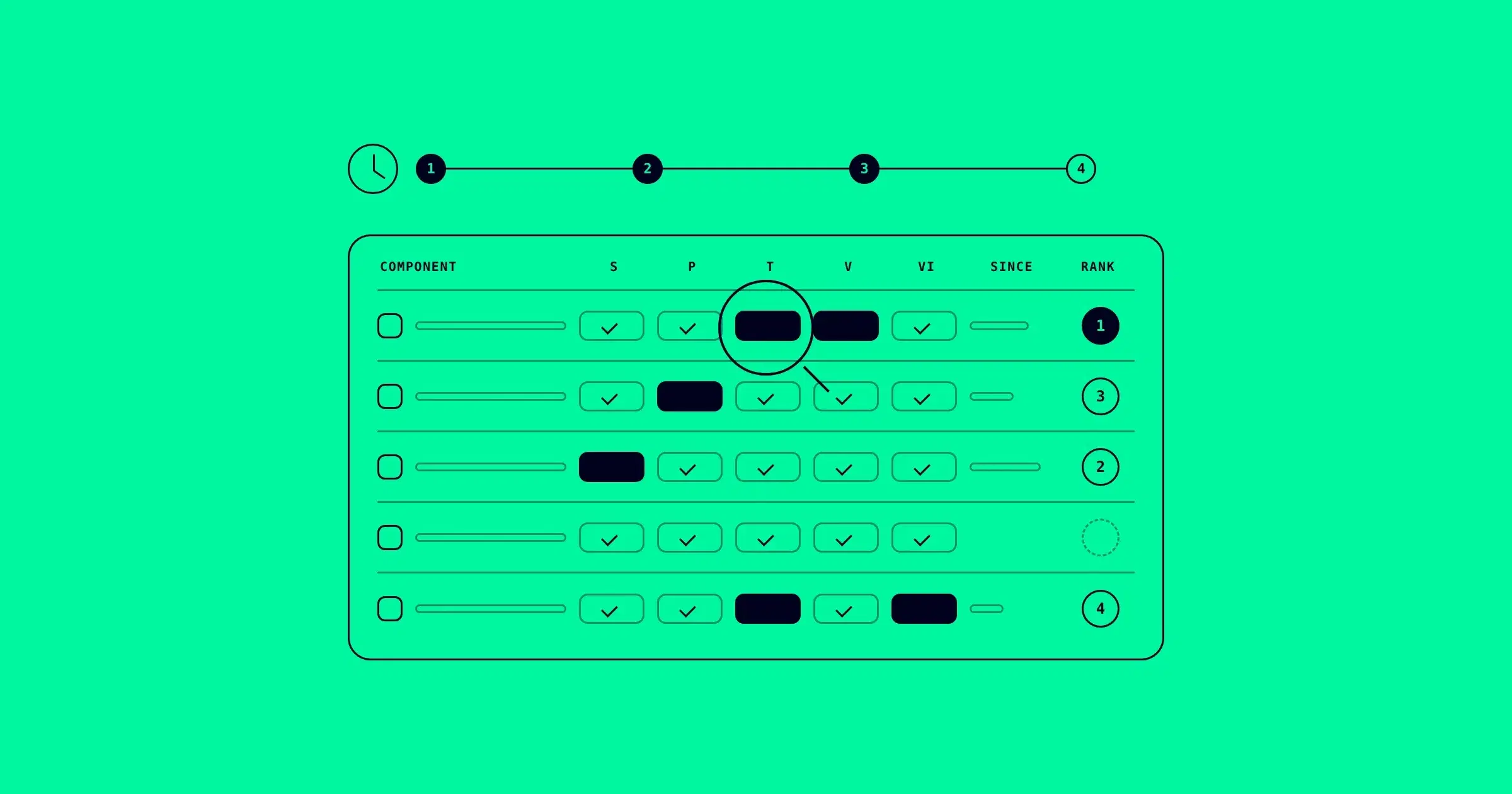
This is the design half of deeepSpace. The Figma Plugin brings in only the components you choose, and the code half comes from deeepCLI. Once both halves are in, every variant can be compared against its design. If you want the why before the how, the five types of design system drift explains what that comparison looks for.
1. Open the plugin
In Figma, open the deeepSpace plugin from Figma Community and run it in your file.
You should see: the plugin window with a sign-in screen. In Design Mode it opens as a floating window, which you can resize from the corner. In Dev Mode it runs inside the Inspect panel. Everything below works the same in both.
2. Sign in
Enter the email you used for your deeepSpace account. deeepSpace sends you a one-time code; paste it into the plugin.
You should see: the plugin signed in, with a workspace and project picker at the top.
3. Choose where the components go
Use the picker at the top of the plugin to choose a workspace and a project. A project holds one design system (or one product, or one client brand), so the components you push land next to the right code later.
You should see: your project's name at the top of the plugin, a search field, and the components on your current page listed below it, each marked Component or Component Set.

4. Select what to push
On the canvas, select the main component or component set you want. Start with one: your Button set.
Only main components travel. If you select an instance, it is skipped, because an instance is a copy of a component, not its definition.
You should see: your selection listed in the plugin. Everything you did not select stays in the file, untouched by the push.
5. Pick a collection
Collections keep pushes organized inside a project: Actions, Inputs, Navigation, and so on. At the bottom of the plugin, open Select a collection and choose one. If none fits, type a name in the search field to create it without leaving Figma.
You should see: the collection's name in the selector, next to the Push button.

6. Push
Press Push. Each component's structure, variants and properties go with it, and you can watch the progress live.
Before anything syncs, the plugin compares your file's styles and variables with the project: colors, typography, spacing, radius and size variables, and shadow styles. If something differs, it shows you what changed and lets you choose what syncs. On a first push into an empty project this is everything, which is expected.
You should see: a checkmark next to each pushed component.

7. Find it in Web Space
Open your project in Web Space. Your Button set is there with its variants and properties, and the styles and tokens that came with it.
You should see: the component, and its first design version. Every push saves a new version of the design side, so the next time you change Button in Figma and push again, Web Space keeps both, and you can see what changed and when.
That is the whole design side. Your component is versioned and waiting for its code counterpart.
What can go wrong
"My component isn't in the list." You probably selected an instance. Select the main component, or the whole component set, on the canvas. Instances are skipped on purpose.
"The plugin is asking before it links the project." The project is already synced from another Figma file. The plugin asks before linking it to this one, so two files never overwrite one source of truth without someone deciding. If this file is the real library, confirm. If not, choose the project that belongs to this file.
"It says drift was detected and I haven't compared anything yet." That is the styles and variables check from step 6, not a comparison with code. The file's colors, spacing or radius values differ from what the project already has. Read the list, keep on what should sync, and push.
"I can't sign in." The one-time code goes to the email on your deeepSpace account. Check that the plugin has the same address, and look in spam for the first code.
Where to go next
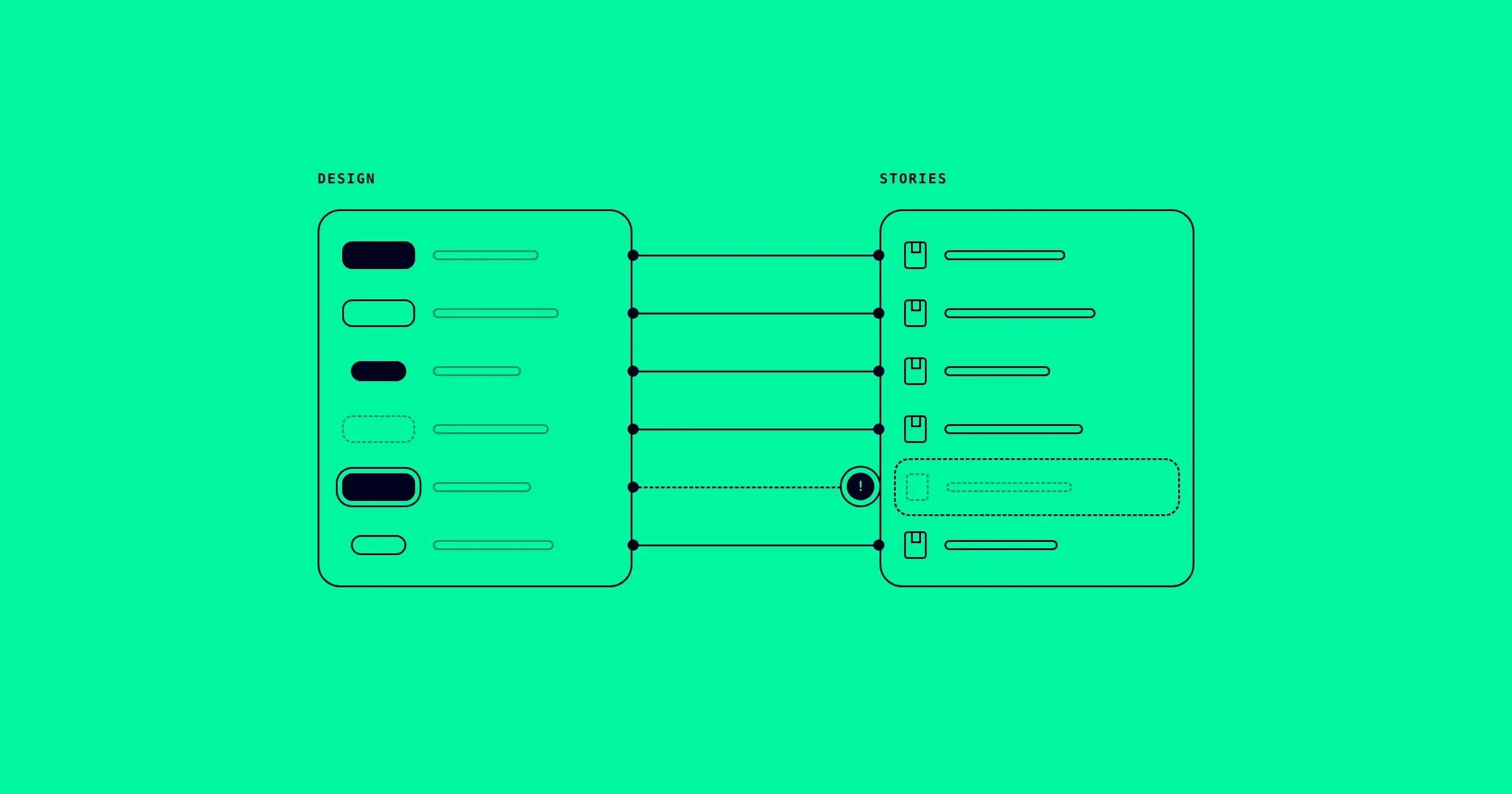
The design side is in. Now bring the code side in, so the comparison can start: the design system CLI discovers your components and their Storybook stories with deeep init and deeep sync, and maps them to what you just pushed.